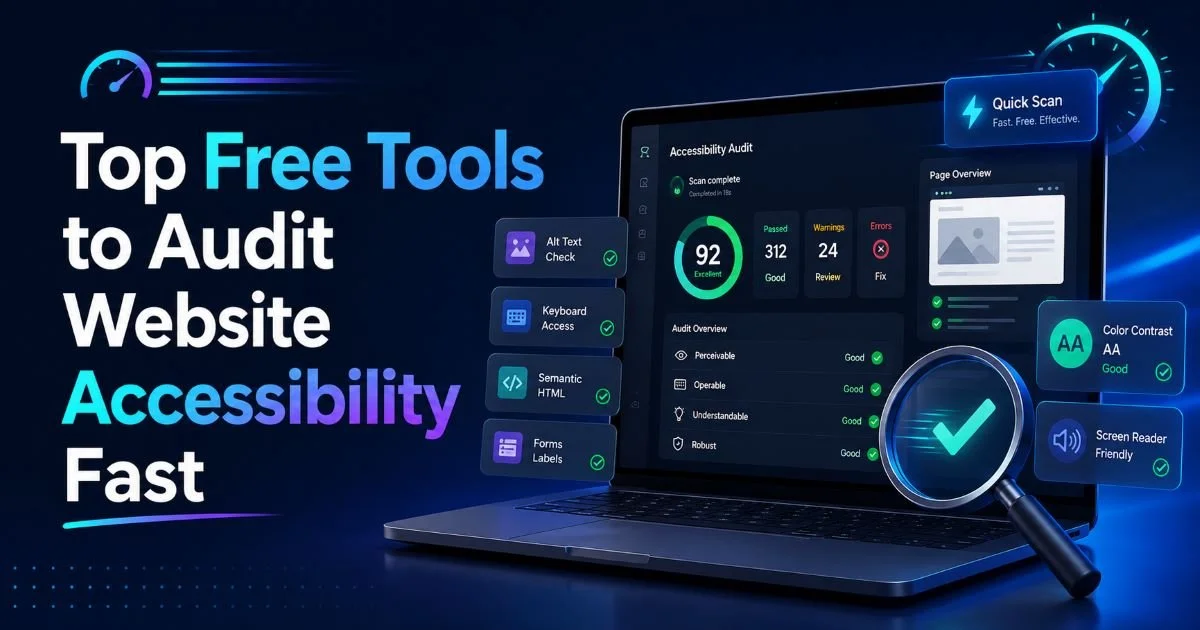
Website accessibility testing doesn't have to cost a fortune or consume your entire sprint. Free tools exist that catch a surprising number of WCAG compliance issues from missing alt text to broken heading hierarchies in minutes rather than hours.
The challenge isn't finding tools; it's knowing which ones to use, in what order, and how to interpret their output without drowning in false positives. If you're a web designer or developer who wants to find and fix website accessibility issues efficiently, this guide walks you through a practical workflow using tools that won't touch your budget.
We'll cover browser extensions, command-line scanners, screen reader testing setups, and automated CI integrations, all free, all proven in production environments.
Key Takeaways
- Automated tools catch roughly 30-40% of accessibility issues; manual testing covers the rest.
- Browser extensions like axe DevTools give instant WCAG violation reports during development.
- Lighthouse audits ship free with Chrome and score pages on a 0-100 accessibility scale.
- Screen reader testing with NVDA or VoiceOver reveals usability problems automation misses entirely.
- Running pa11y in CI pipelines prevents new accessibility regressions from reaching production.
1. Use Browser Extensions for Instant Accessibility Audits
axe DevTools
The axe DevTools browser extension from Deque Systems is the single most popular accessibility testing tool among professional developers, and for good reason. It runs directly inside Chrome or Firefox DevTools, scanning the rendered DOM for WCAG 2.1 Level A and AA violations. Each issue it flags includes the specific WCAG success criterion, the affected HTML element, and a plain-language explanation of why it fails. You can test entire pages or isolated components.
What makes axe particularly reliable is its near-zero false positive rate. Deque has invested years in refining its rule engine so that when axe reports an issue, it's almost certainly a real problem.
The free version covers over 70 rules, including checks for missing alt text on images, insufficient color contrast, empty links, and form inputs without labels. For a deeper understanding of writing descriptive image text, check out this guide on how to write effective alt text for every image type.
Run axe on individual component states (modals open, dropdowns expanded) since the scanner only evaluates currently visible DOM elements.
WAVE Evaluation Tool
WAVE, built by WebAIM, takes a different visual approach. Instead of listing issues in a console panel, it overlays icons and indicators directly onto the page, showing exactly where problems occur.
This makes it especially useful for designers who think spatially. Red icons mark errors, yellow icons flag alerts that need human review, and green icons confirm structural elements like headings and ARIA landmarks.
WAVE also provides a contrast checker, a document outline view, and a way to strip styles from the page so you can evaluate the underlying reading order. It's free as both a browser extension and a web-based tool at wave.webaim.org. One limitation: WAVE can't scan pages behind authentication unless you use the extension, since the web version fetches pages server-side.
2. Run Lighthouse and Command-Line Scanners
Lighthouse Accessibility Score
Google Lighthouse ships inside every installation of Chrome, making it the most universally available accessibility scanner on the planet.
Open DevTools, navigate to the Lighthouse tab, check the Accessibility category, and hit "Analyze page load." Within seconds you get a score from 0 to 100 along with a categorized list of passed and failed audits. Lighthouse uses the axe-core engine under the hood, so the rule quality is identical.
The score is useful for tracking progress over time, but don't treat it as a comprehensive measure of usability. A page can score 100 and still be unusable for screen reader users if it has poor focus management or confusing ARIA patterns that fall outside automated detection.
Lighthouse is best used as a first-pass filter. Run it, fix every flagged issue, then move to manual testing. You can also run Lighthouse from the command line with npx lighthouse https://yoursite.com --only-categories=accessibility for scripted audits.
Lighthouse scores can vary between runs due to network conditions and rendering timing. Run it at least three times and use the median score.
pa11y for CI Integration
pa11y is an open-source Node.js tool that runs accessibility tests from the command line or inside continuous integration pipelines. It supports WCAG 2.1 standards at Level A, AA, or AAA, and uses either HTML_CodeSniffer or axe-core as its test runner. The real power of pa11y is automation: add it to your GitHub Actions or GitLab CI config, and every pull request gets checked for accessibility regressions before merging.
Setting it up is straightforward. Install with npm install -g pa11y, then run pa11y https://yoursite.com. For multi-page testing, pa11y-ci accepts a JSON config listing all your URLs. Teams that monitor their builds with AI-powered tools, as covered in this guide on AI agent monitoring, can integrate pa11y results into the same observability dashboards. This kind of automated pipeline catches issues that manual spot-checks routinely miss.
3. Test with Screen Readers and Keyboard Navigation
NVDA and VoiceOver
No automated tool replaces the experience of hearing your website read aloud. NVDA (NonVisual Desktop Access) is a free, open-source screen reader for Windows that pairs with Firefox or Chrome. VoiceOver comes built into every Mac and iPhone at no cost. Together, they represent the two screen readers your users are most likely to encounter. Testing with both covers the majority of real-world assistive technology combinations.
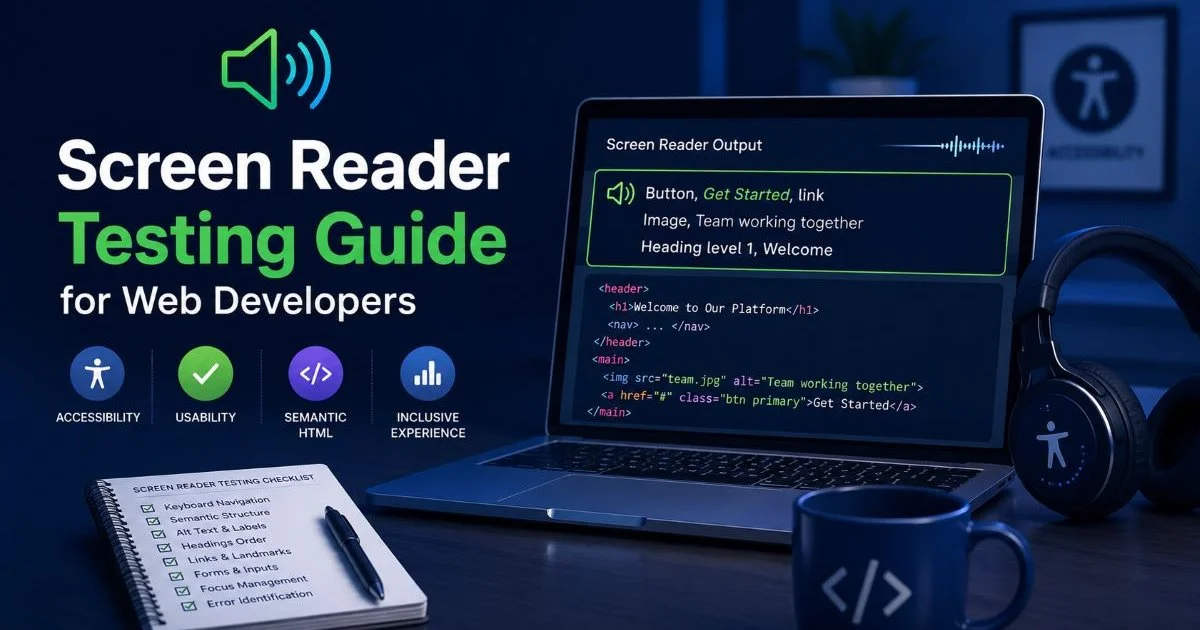
Start by navigating your page using only the screen reader's virtual cursor. Listen to how headings are announced. Are they in logical order? Do images have meaningful alt text, or does the reader just say "image"? Are form fields properly labeled so users know what information to type? For a structured approach to this kind of testing, the screen reader testing guide for web developers breaks down the exact steps and keyboard shortcuts you need.
"If your website sounds like gibberish through a screen reader, no automated score can save the user experience."
Keyboard-Only Navigation
Keyboard testing is the simplest and most revealing manual accessibility test you can perform. Unplug your mouse, then try to complete every task on your page using only Tab, Shift+Tab, Enter, Space, and arrow keys.
Can you reach every interactive element? Is the focus indicator visible at all times? Does the tab order follow a logical reading sequence, or does focus jump erratically across the layout?
Common failures include custom dropdown menus that trap keyboard focus, modals that don't return focus to the trigger element when closed, and skip-navigation links that are either absent or broken.
These problems are invisible to automated scanners because they require understanding user intent and task flow.
Budget at least 15 minutes of keyboard-only navigation per unique page template in your project. It catches issues that affect not just screen reader users but anyone who relies on keyboard input, including power users and people with motor disabilities.
Custom JavaScript widgets built without ARIA roles and keyboard event handlers are the most common source of keyboard accessibility failures.
4. Compare Tools and Build Your Testing Workflow
Tool Comparison Table
Choosing the right combination of tools matters more than picking any single one. Each tool has strengths and blind spots, so layering them produces far better coverage than relying on a single scanner.
The table below summarizes the free tools discussed in this guide, organized by their primary use case, WCAG standard coverage, and integration method.
| Tool | Type | WCAG Coverage | Best For | Cost |
|---|---|---|---|---|
| axe DevTools | Browser extension | 2.1 AA | Component-level testing | Free |
| WAVE | Browser extension / web | 2.1 AA | Visual error mapping | Free |
| Lighthouse | Built into Chrome | 2.1 AA | Quick scoring and CI | Free |
| pa11y | CLI / CI pipeline | 2.1 AAA | Automated regression testing | Free |
| NVDA | Screen reader | Manual | Real-world AT testing (Windows) | Free |
| VoiceOver | Screen reader | Manual | Real-world AT testing (Mac/iOS) | Free |
Building a Repeatable Process
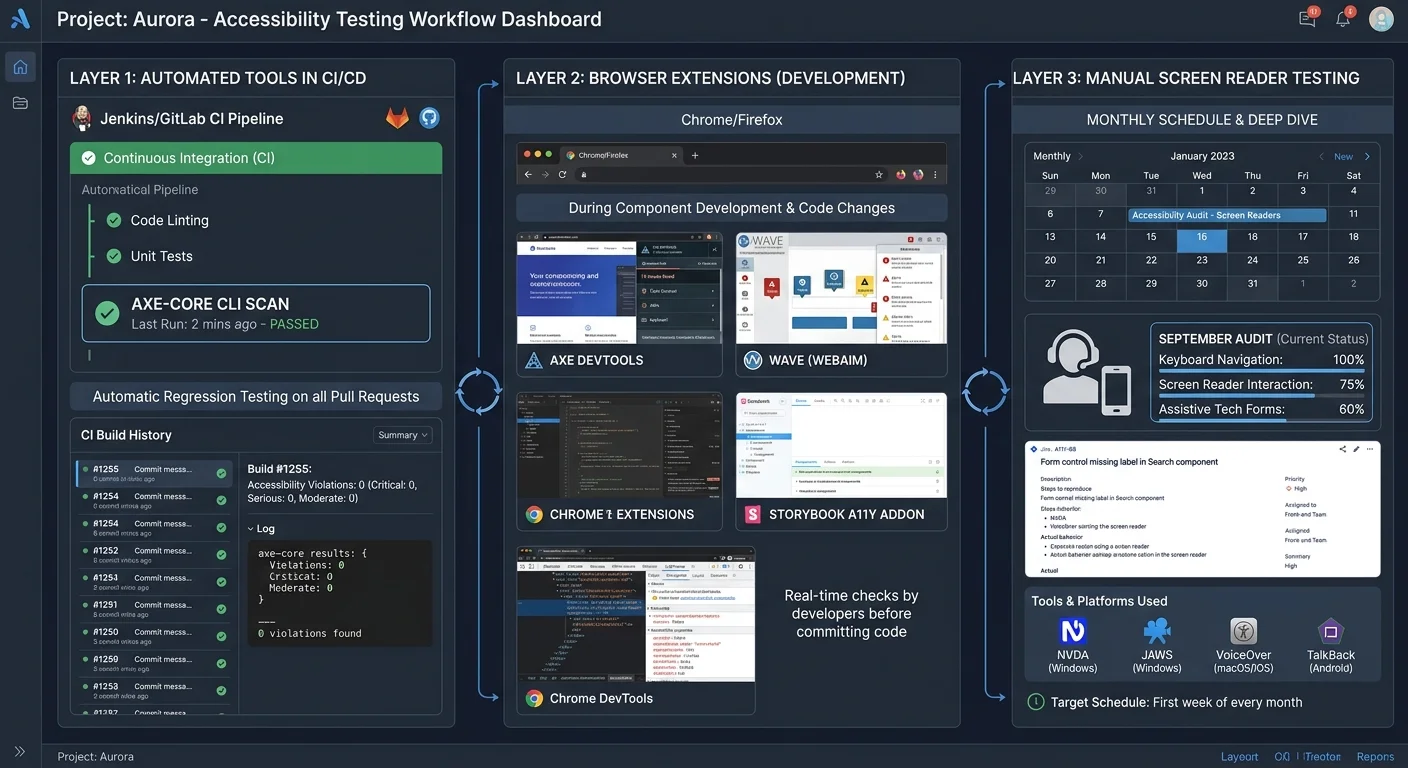
The most effective accessibility workflow blends automated scanning with targeted manual checks. During development, run axe DevTools on every component as you build it.
Before each pull request, trigger pa11y in your CI pipeline to catch regressions. Once a sprint, do a full-page Lighthouse audit and a manual keyboard walkthrough of any new features or redesigned templates. Monthly, run a screen reader test on your highest-traffic pages.
This layered approach means automated tools handle the repetitive, pattern-based checks while your manual testing time focuses on nuanced usability issues that machines can't evaluate.
If you're working on a small business site and want a structured checklist for WCAG compliance, the WCAG compliance checklist for small business sites provides a practical framework you can adapt to any project size.
Document your findings in a shared spreadsheet or issue tracker. Tag each issue with the WCAG success criterion it violates, the severity level, and the page or component affected. This creates an audit trail that proves compliance progress to stakeholders and helps your team prioritize fixes by impact. Over time, your recurring issues will decrease as the team internalizes common patterns missing from labels, decorative images with non-empty alt attributes, and focus traps in modals.
Create a browser bookmark folder with axe, WAVE, and Lighthouse preset to your staging URL so any team member can run a quick audit in under two minutes.
Frequently Asked Questions
?How do I test axe DevTools on a modal or dropdown state?
?Should I use axe DevTools or WAVE when auditing a page?
?If automated tools only catch 30-40% of issues, is free testing worth it?
?Can WAVE scan pages that require a login?
Final Thoughts
Free accessibility tools are remarkably capable, but they work best when you use them together rather than in isolation. Start with axe DevTools and Lighthouse for automated coverage, add pa11y to your CI pipeline for regression prevention, and schedule regular screen reader and keyboard testing for the issues machines simply cannot detect.
The web usability improvements you make will benefit every visitor, not just those using assistive technology. Accessibility isn't a checkbox — it's a practice, and these tools make that practice sustainable without spending a dollar.
Disclaimer: Portions of this content may have been generated using AI tools to enhance clarity and brevity. While reviewed by a human, independent verification is encouraged.