Alt text is one of the most fundamental elements of website accessibility, yet it remains one of the most frequently mishandled. Screen reader users depend on descriptive alt attributes to understand images they cannot see, and search engines rely on them to index visual content accurately. Despite its importance, many web designers and developers still default to vague descriptions like "image" or leave the alt attribute empty on meaningful graphics. Poor alt text creates real usability barriers and can put your site out of WCAG compliance.
Writing effective alt text isn't about following a single formula; different image types demand different approaches. Whether you're describing a product photo, a decorative icon, or a complex data chart, the strategy changes. This guide walks you through practical, tested methods for writing alt text that actually works, covering every common image type you'll encounter in modern web development. If you're working to find and fix website accessibility issues, getting alt text right is one of the highest-impact fixes you can make.
Key Takeaways
- Decorative images should always use an empty alt attribute; never be left without one.
- Functional images like buttons need alt text describing the action, not the icon.
- Complex images, such as charts, require both short alt text and a longer description.
- Context determines the right alt text; the same photo may need different descriptions.
- Automated testing tools catch missing alt attributes but cannot evaluate alt text quality.
1. Understand What Alt Text Actually Does
How Screen Readers Process Alt Text
Alt text: The value assigned to an image's alt attribute in HTML serves as a text replacement when the image cannot be perceived visually. Screen readers like NVDA, JAWS, and VoiceOver announce this text when they encounter an <img> element. If the alt attribute is missing entirely, most screen readers will read the file name instead, which often sounds like "DSC underscore zero four three seven dot jpeg." That experience is confusing and unhelpful for any user relying on assistive technology.
WCAG 2.2 Success Criterion 1.1.1 requires that all non-text content have a text alternative serving the equivalent purpose. This is a Level A requirement, the most basic tier of compliance. Failing it means your site has fundamental accessibility issues that affect a broad range of users, not just those with vision impairments. Slow connections, broken image paths, and browser text-only modes all fall back to alt text as well.
The Cost of Getting It Wrong
Bad alt text doesn't just create legal risk, it degrades the usability of your entire site for a significant audience. The WebAIM Million study consistently finds that missing alternative text is among the top five most common accessibility errors across one million home pages. Each instance represents a moment where someone is excluded from your content. That's a tangible business cost in lost engagement and trust, especially for e-commerce sites where product images drive purchasing decisions.
Overly generic alt text is nearly as harmful as missing alt text. Writing "photo" or "image of a thing" adds almost no value. The goal is functional equivalence: if you removed the image and replaced it with just the alt text, would a reader still understand the page? That mental test is the single most reliable way to evaluate whether your description works. Apply it every time you write alt text, and your quality will improve immediately.
Read your alt text aloud without looking at the image. If it doesn't make sense on its own, rewrite it.
2. Match Your Alt Text to the Image Type
Informative Images
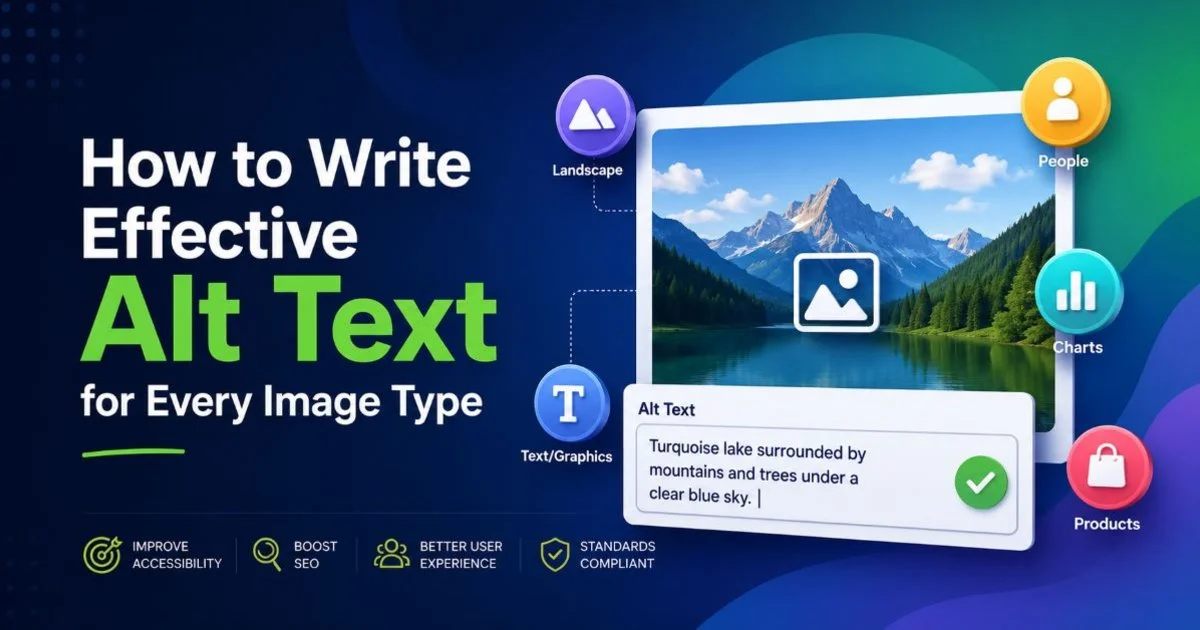
Informative images convey content that isn't available anywhere else on the page. A photograph of a team at a conference, a screenshot demonstrating a UI state, or a diagram explaining a process all carry meaning. Your alt text should describe what the image communicates in context, not just what it literally depicts. For a team photo on an About page, "Five members of the Acme design team at their downtown Portland office" works better than "a group of people smiling."
Product images deserve particular care. An online store selling running shoes needs alt text that includes the brand, model, color, and distinguishing features. "Nike Air Zoom Pegasus 40 in black and volt colorway, side profile view" gives a screen reader user enough information to make a purchasing decision. Think about what a sighted user gains from the image and translate that into concise language. Keep descriptions under 125 characters when possible, since some assistive technologies truncate longer strings.
Alt text character limits vary by screen reader. JAWS handles long strings well, but aim for brevity regardless.
Decorative and Functional Images
Decorative images exist purely for visual design, background patterns, spacer graphics, or ambient photography that doesn't add informational value. These must have an empty alt attribute: alt="". This tells the screen reader to skip the image entirely. Omitting the alt attribute altogether is different and problematic; it causes the screen reader to announce the file name. Every decorative image needs that explicit empty value to maintain clean navigation for assistive technology users.
Functional images, icons inside links, buttons with image labels, and logo links to the homepage need alt text that describes the action or destination, not the visual appearance. A magnifying glass icon in a search button should have alt="Search", not alt="magnifying glass icon". Similarly, a company logo linking to the home page should use alt=" Acme Corp home page". The purpose of the image determines the alt text, not its appearance.
3. Write Alt Text for Complex Visuals
Charts, Graphs, and Infographics
Data visualizations present a unique challenge because their information cannot be condensed into a short phrase. WCAG allows a two-part approach: provide a brief alt attribute summarizing what the chart shows, then offer a detailed text alternative nearby. The short alt might read "Bar chart comparing monthly website traffic across five regions." The long description placed in a <figcaption>, a linked page, or an expandable <details> element should include the actual data points so screen reader users get full access.
"If you removed the image and replaced it with just the alt text, would a reader still understand the page?"
Infographics are especially tricky because they often combine multiple data sets, icons, and narrative text in a single image. Breaking the content into semantic HTML is always the best approach when feasible. If the infographic must remain as a single image, write a comprehensive long description that walks through each section in reading order. This is labor-intensive but non-negotiable for compliance. Some teams maintain a companion blog post or accessible PDF as the long description alternative.
Never use alt text like "infographic" or "chart" alone. This tells the user nothing about the actual data.
AI-Generated and Stock Images
The rise of AI-generated imagery adds a new dimension to alt text writing. Tools like those listed in collections of free AI image generators make it easy to produce unique visuals, but they don't generate alt text automatically. Because AI images are often abstract or stylized, writers must be especially deliberate about describing them. Ask yourself whether the generated image is informative or decorative. If it illustrates a concept in your article, write alt text describing what the viewer is meant to understand from it.
Stock photos face a similar challenge. They're often chosen for mood rather than specific content, which makes them borderline decorative. A stock photo of a diverse team in a meeting room, used generically on a services page, might warrant alt="" if the surrounding text already communicates the message. But if that same image appears in a blog post about workplace collaboration and directly supports the narrative, it needs descriptive alt text. Context is the deciding factor every single time.
4. Test and Refine Your Alt Text
Manual Testing Techniques
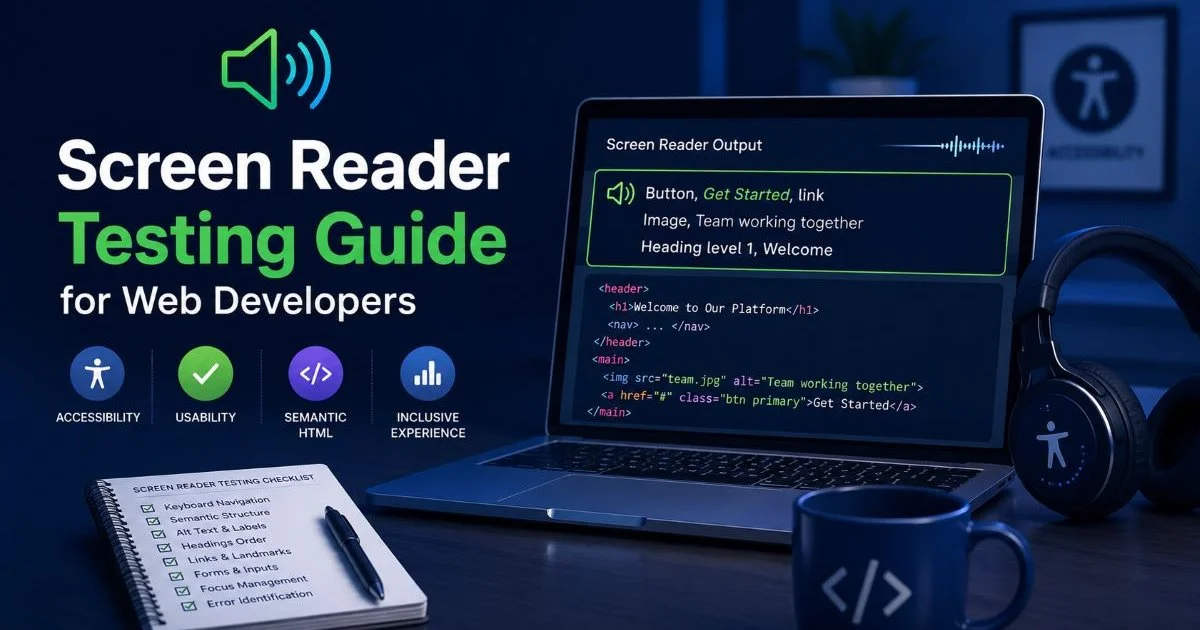
Automated accessibility testing tools like Axe, WAVE, and Lighthouse can detect missing alt attributes in seconds. They cannot, however, evaluate whether existing alt text is meaningful. A tool will pass alt="image" as technically present, even though it's functionally useless. This is why manual review remains essential. Turn on a screen reader, VoiceOver on Mac, NVDA on Windows, and navigate your page using only the keyboard. Listen to how each image is announced and ask whether you'd understand the content without seeing the screen.
Another effective manual technique is the "phone test." Call a colleague and describe a page to them over the phone without sharing your screen. When you reach an image, read your alt text. If they can follow the narrative without confusion, your alt text is working. If you find yourself adding verbal clarifications, your descriptions need improvement. This low-tech method is surprisingly effective at revealing weak alt text that formal testing might overlook during routine web compliance checks.
Create a screen reader testing checklist specific to images and run it before every deployment.
Building a Review Workflow
Sustainable alt text quality requires a workflow, not just individual diligence. Add alt text review as an explicit step in your content publishing process. Content management systems like WordPress allow you to set the alt field as required before publishing. If your CMS doesn't support this natively, a pre-publish checklist or a linting tool in your build pipeline can catch images missing alt attributes before they reach production. Prevention is always cheaper than remediation.
Consider assigning the alt text responsibility clearly within your team. Designers who select or create images often understand their purpose best, but copywriters may produce more effective descriptions. A collaborative handoff where the designer notes the image's intent and the writer crafts the alt text produces the strongest results. Document your conventions in a style guide so every contributor follows the same standards. Include examples for each image type, referencing real pages on your site for clarity.

Frequently Asked Questions
?How do I write alt text for a button with only an icon?
?Can automated tools fully check if my alt text is good enough?
?How long does fixing alt text across an existing site realistically take?
?Is leaving alt empty ever acceptable, or always a WCAG violation?
Final Thoughts
Writing effective alt text is a skill that improves with practice and intention. Every image type, informative, decorative, functional, complex, demands a specific approach grounded in context and purpose. Automated testing catches the easy wins, but meaningful alt text requires human judgment. Build it into your workflow, test it with real assistive technology, and treat it as a core part of your content strategy rather than an afterthought. Your screen reader users and your WCAG compliance posture will reflect the effort.
Disclaimer: Portions of this content may have been generated using AI tools to enhance clarity and brevity. While reviewed by a human, independent verification is encouraged.